Schedule
input.schedule Input v0.1.0 Fires on a cron schedule or fixed interval, emitting a tick with the fire time.
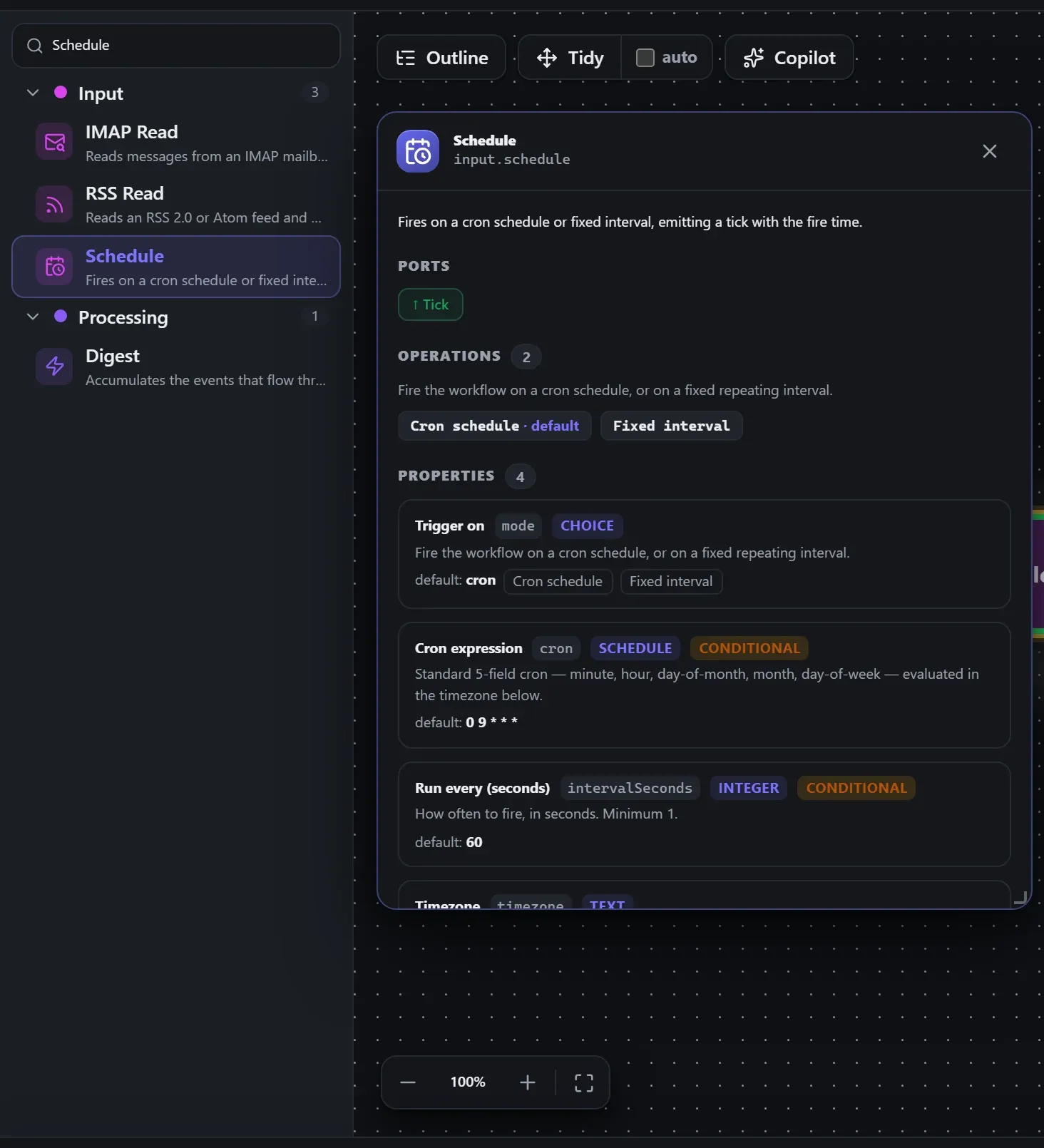
Finding it in the library
Search the builder's node library for Schedule (it lives under Input). A single click opens the in-editor docs panel shown here — description, ports, and every property, without leaving the canvas. Double-click (or drag) to add it to the workflow.
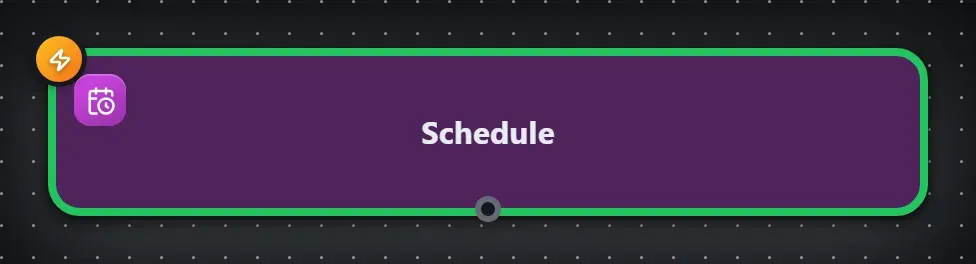
Wired up in the builder
Schedule in a real, runnable flow — captured live from the Studio editor, exactly as it looks on your canvas. This is the same workflow used for the example input & output below.

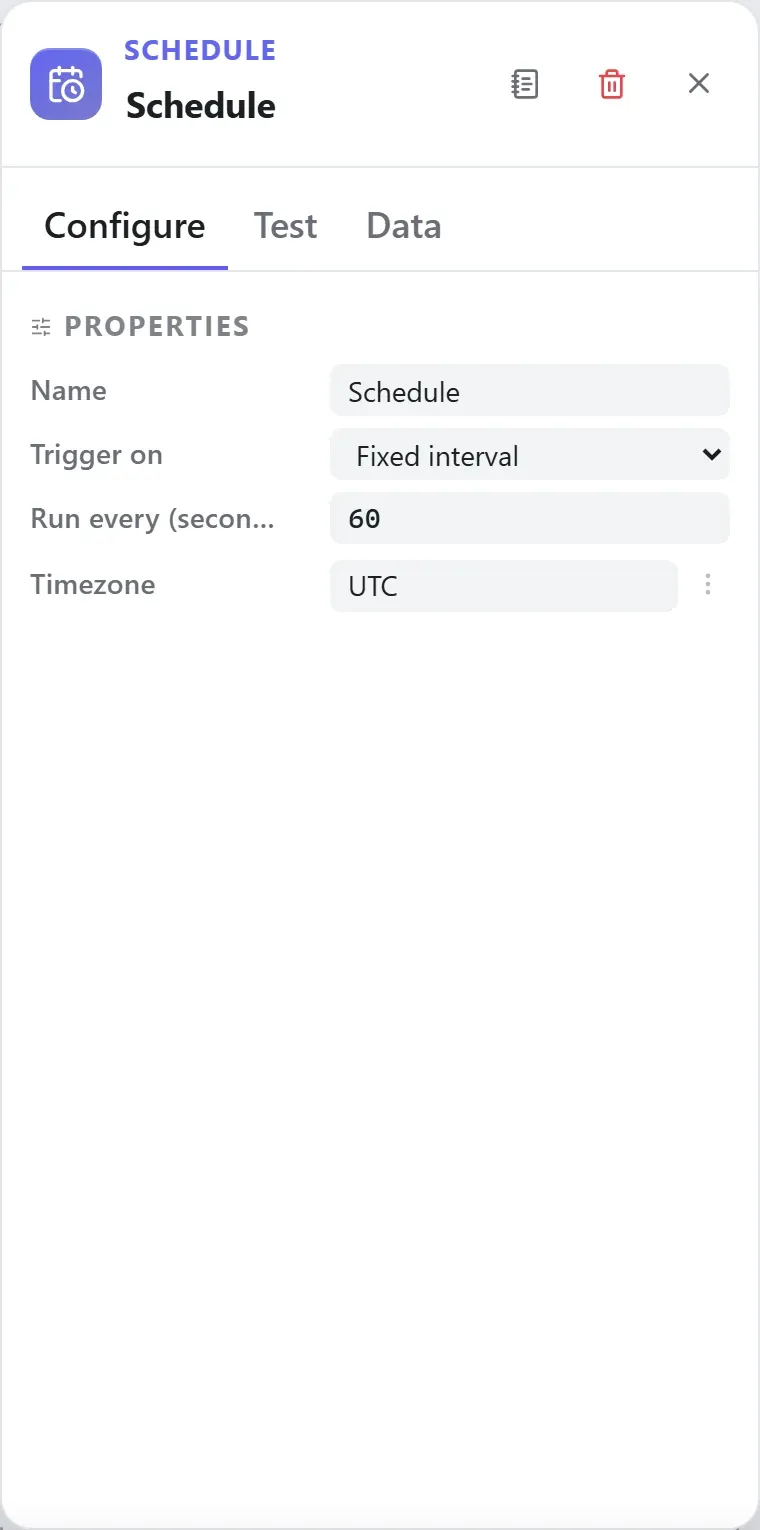
How it’s configured
The node’s settings as the builder shows them — every field laid out with real values. In the Studio these are edited on the node: click the chevron on the divider under its ports to open them.
Ports
This is a trigger — it starts runs and takes no input wire.
Ports are the node’s contract with its neighbours. In the editor a port label renders bold when wired and italic when optional; ◈ ports accept attachment carriers rather than data wires.
| Direction | Port | Label | What flows through it |
|---|---|---|---|
| Output | output | Tick |
How data flows through it
As a trigger, Schedule starts runs — it takes no input wire. What it emits is
the request wrapper: the event’s body becomes the payload, and the wrapper
carries the event metadata around it (for an HTTP-style trigger that’s
headers.*, request.method, request.path and
query). Downstream nodes consume the content — the wrapper is unwrapped
at each node boundary, and expression roots like {{ headers.x }} still
resolve against the wrapper when you need the metadata. See
Runs & run data for the envelope model.
Expressions in the config
String-typed properties accept {{ }} expressions evaluated against the
incoming item at run time — e.g. {{ $json.customer.email }}. On this node
that’s timezone. JSON- and code-typed fields never interpolate — they are passed through literally.
Build it with AI
Every node in this reference is reachable through Flowdrome’s
AI Copilot and the
MCP tools — say what you want, and the graph surgery
happens server-side. Node types resolve fuzzily, so the catalog label
(Schedule) works as well as the exact type id (input.schedule).
In the Copilot panel (or any connected AI):
create a workflow that starts with schedule and logs the resultAs a step in a create_chain_workflow call:
{"type":"Schedule","config":{}}Raw MCP call — add this node to a workflow with add_node
curl -s -X POST http://localhost:4800/mcp -H "content-type: application/json" -d '{ "jsonrpc": "2.0", "id": "1", "method": "tools/call", "params": { "name": "add_node", "arguments": { "workflowId": "<id>", "type": "Schedule" } } }'Example input & output
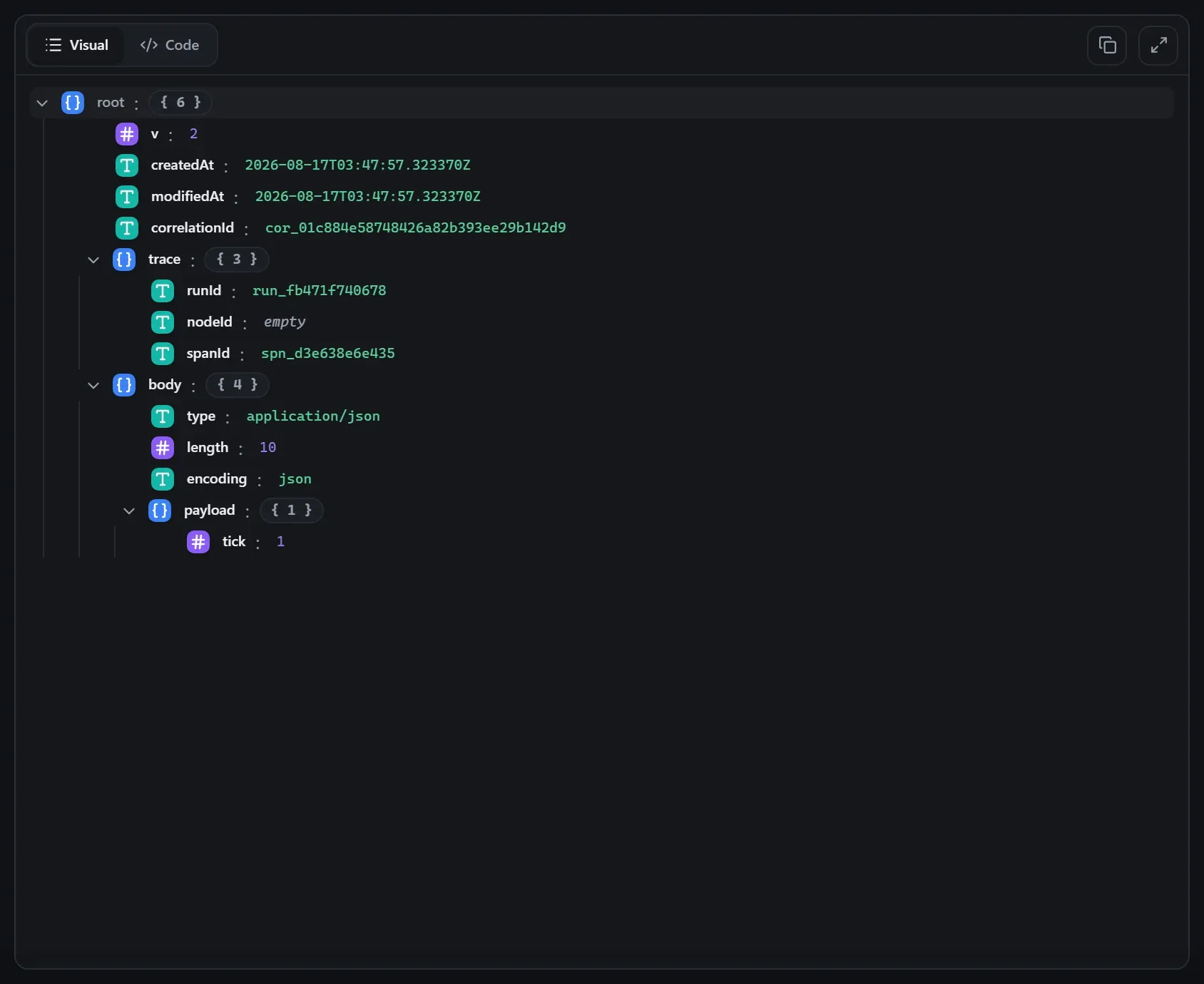
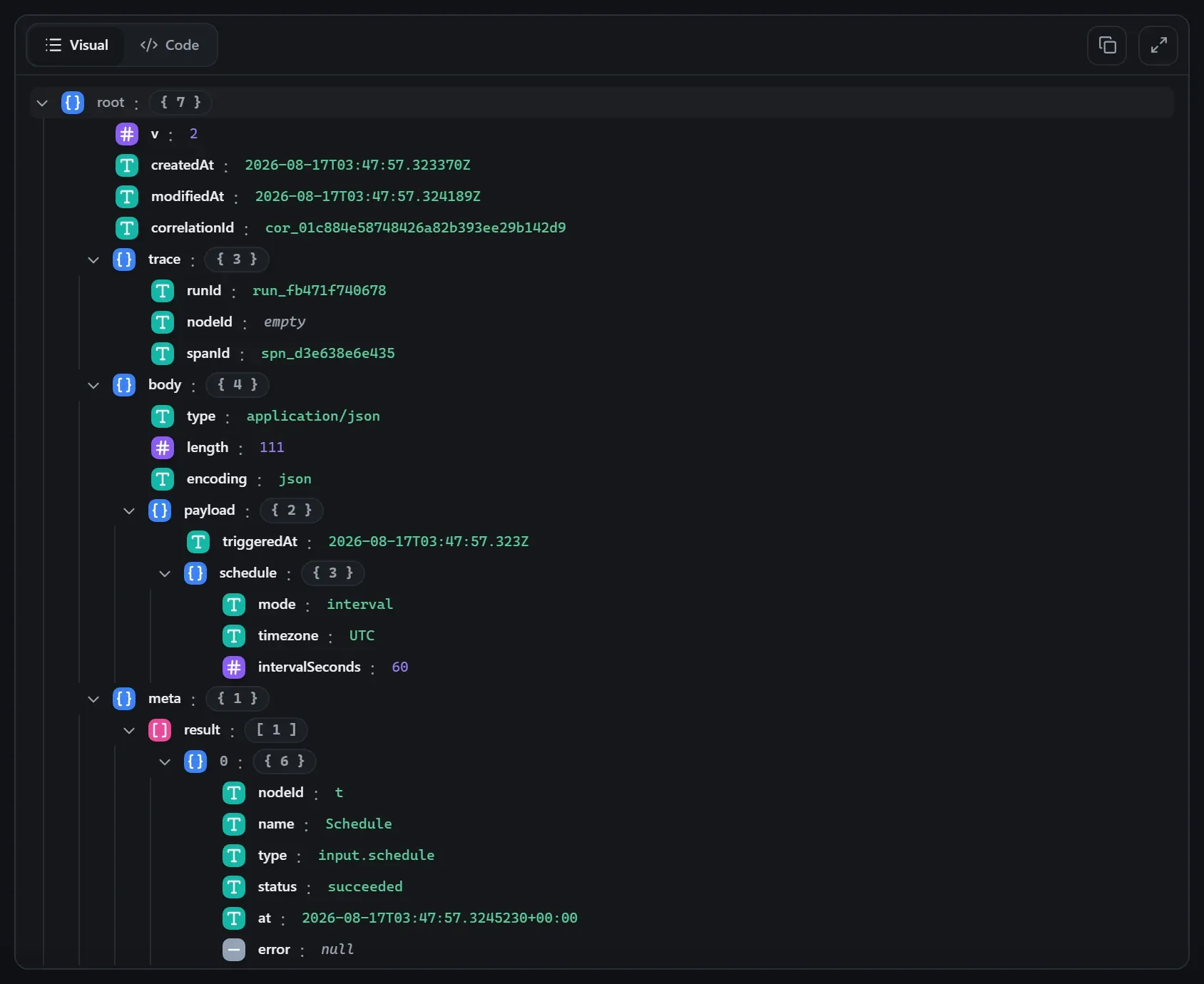
Captured from a real test run of the workflow above — this is what the Runs view shows after pressing Test workflow.
Input — what the node received
body.Output — what the node produced
Property reference
Every setting, with its type and default — the same fields shown configured above.
| Property | Type | Default | Description |
|---|---|---|---|
Trigger onmode | select | "cron" | Fire the workflow on a cron schedule, or on a fixed repeating interval. croninterval |
Cron expressioncron | cron | "0 9 * * *" | Standard 5-field cron — minute, hour, day-of-month, month, day-of-week — evaluated in the timezone below. Shown when (mode ?? "cron") !== "interval" |
Run every (seconds)intervalSeconds | int | 60 | How often to fire, in seconds. Minimum 1. Shown when (mode ?? "cron") === "interval" |
Timezonetimezone | string | "UTC" | IANA timezone the schedule is evaluated in (e.g. UTC, America/New_York). |
Using it
Poll a feed every minute (the shipped RSS Digest demo)
Mode = interval, Interval seconds = 60. Feed it into RSS Read with Only new
items on — schedule + RSS’s seen-item dedupe is the standard poller pattern: each tick emits
only items it hasn’t seen before.
Every weekday at 9am, New York time
Mode = cron, Cron = 0 9 * * 1-5, Timezone = America/New_York.
Standard 5-field cron — minute, hour, day-of-month, month, day-of-week — evaluated in the configured IANA timezone. The editor’s cron field validates the expression live and shows the next firing times as you type.
Tips
- In the editor, a schedule doesn’t tick on its own — Test workflow fires it once so you can develop without waiting for 9am. Deployed apps run the schedule for real, per the production trigger model.
- Timezone matters twice a year:
0 9 * * *inAmerica/New_Yorkstays 9am local through DST; the same cron inUTCshifts an hour. - For run-once batch jobs triggered by an external scheduler (cron, CI), use the Manual trigger and job mode instead — the app executes once and exits.
Related nodes
The rest of the Input group — the same folder you’d scan in the editor’s library.
This page is generated from the node registry by gen-node-docs.mjs on every
site build — ports, properties, defaults and visibility rules cannot drift from the code.
The screenshots and example data are captured from a live Flowdrome by
npm run shots:nodes and npm run gen:examples.
The hand-authored notes above are merged in.