Hosts
Flowdrome splits control from execution: the Nucleus manages — it never executes — and hosts run the deployed apps. A host is the single-file host agent running as its own process, usually on a machine of its own (bare, in Docker, as a Proxmox LXC container, or booted from the live ISO). This guide covers both sides: the Nucleus’s fleet view, and each host’s own dashboard.
You already have a host. The Nucleus supervises one of its own: it starts with the Nucleus, enrols itself over loopback, and sits in the fleet as Built-in host on port 4820 — no join token, no configuration. So a Nucleus on its own is a complete, working install: build a workflow, deploy it, call it. Everything in this guide applies to it exactly as it does to any other host; the one section you can skip is enrolling.
The fleet view
Hosts in the Nucleus header lists every enrolled host, grouped by environment — a
label like default, docker, prod you assign at enrollment:
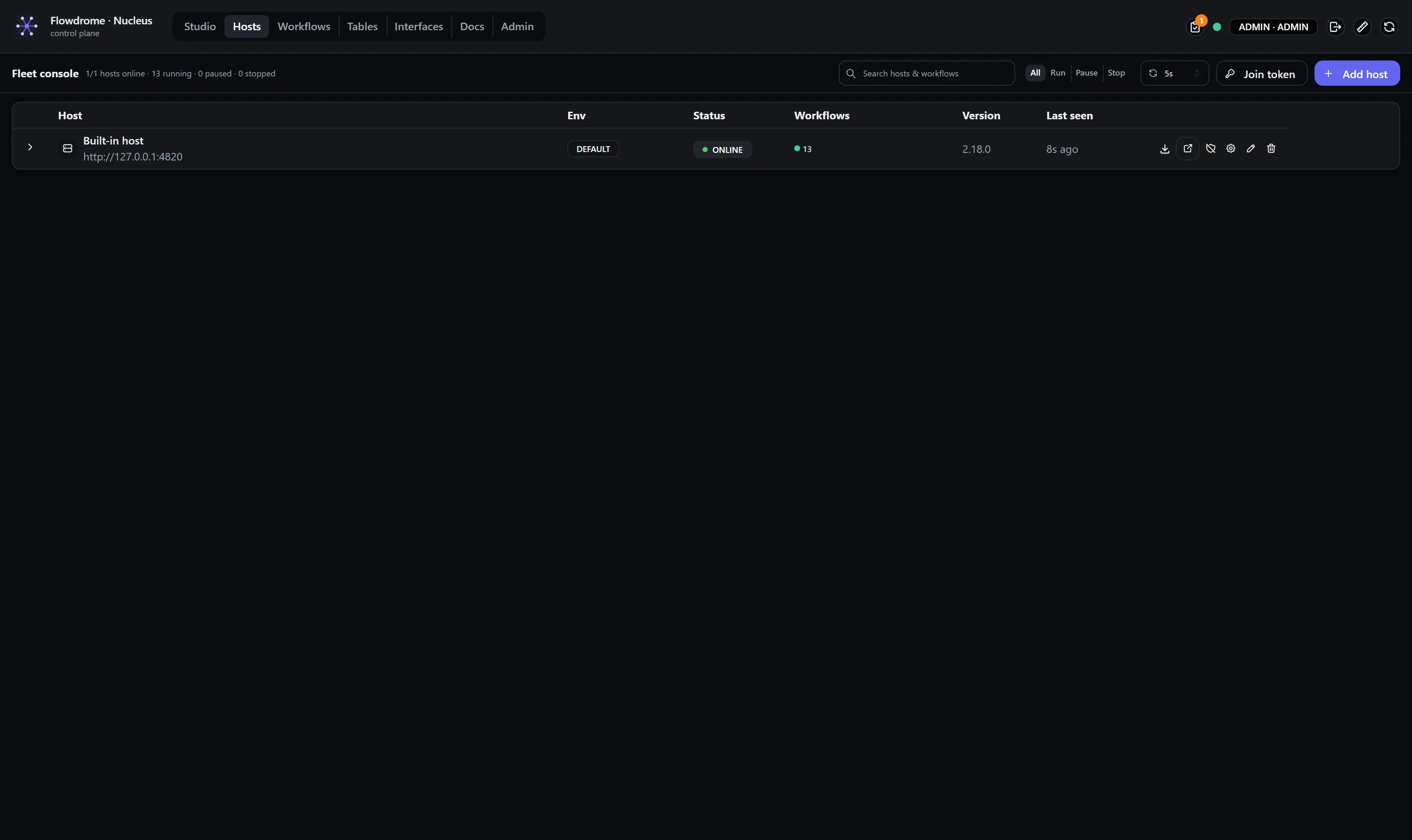
The Built-in host is a row like any other — same status, same version, same actions, in the
default environment. It is a separate process with its own data directory (builtin-host/ under
the Nucleus’s data root) and its own engine, which is why it can be listed, opened, deployed to and
inspected without the Nucleus ever executing anything itself.
Enrolling a host
Enrol a host when you want workflows executing somewhere other than the Nucleus’s own machine — work near a database, load spread across boxes, environments kept apart. You do not need one to deploy.
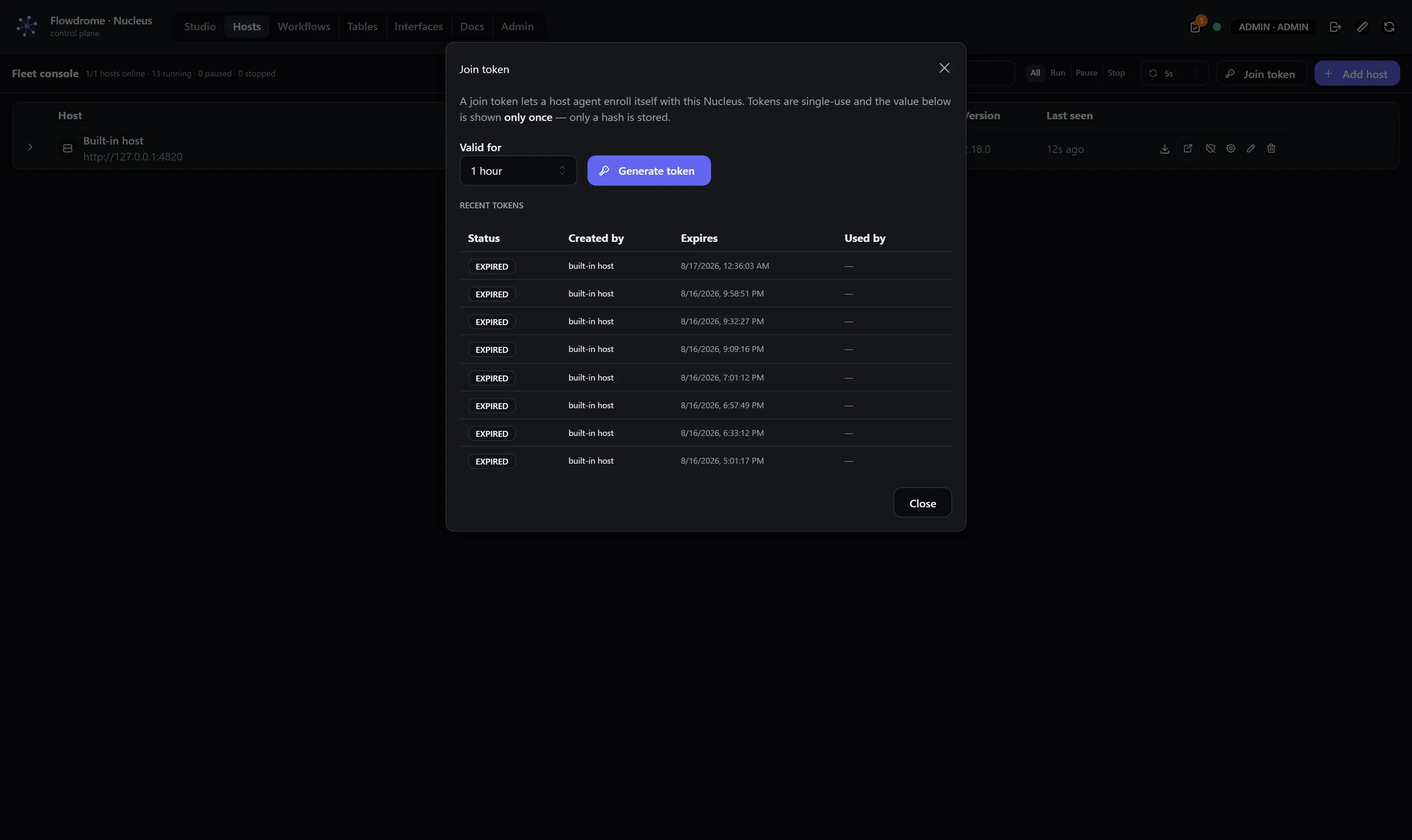
Hosts don’t get passwords — they get join tokens:
- Click Join token and create one. It is shown once; treat it like the secret it is.
- Hand it to the agent any way that suits the machine: the
--joinCLI flag,FLOWDROME_JOIN_*environment variables, or paste it into the host GUI’s Connect to Nucleus screen. - The host dials the Nucleus, presents the token, and appears in the fleet as authorized.
The host dashboard
Every host serves its own dashboard — open it from the fleet row’s external-link action. It is the same console the Nucleus renders for that host (literally the same component, pointed at the host’s own engine), plus the host’s Nucleus-connection card. What you learn in one place applies in the other, pixel for pixel.
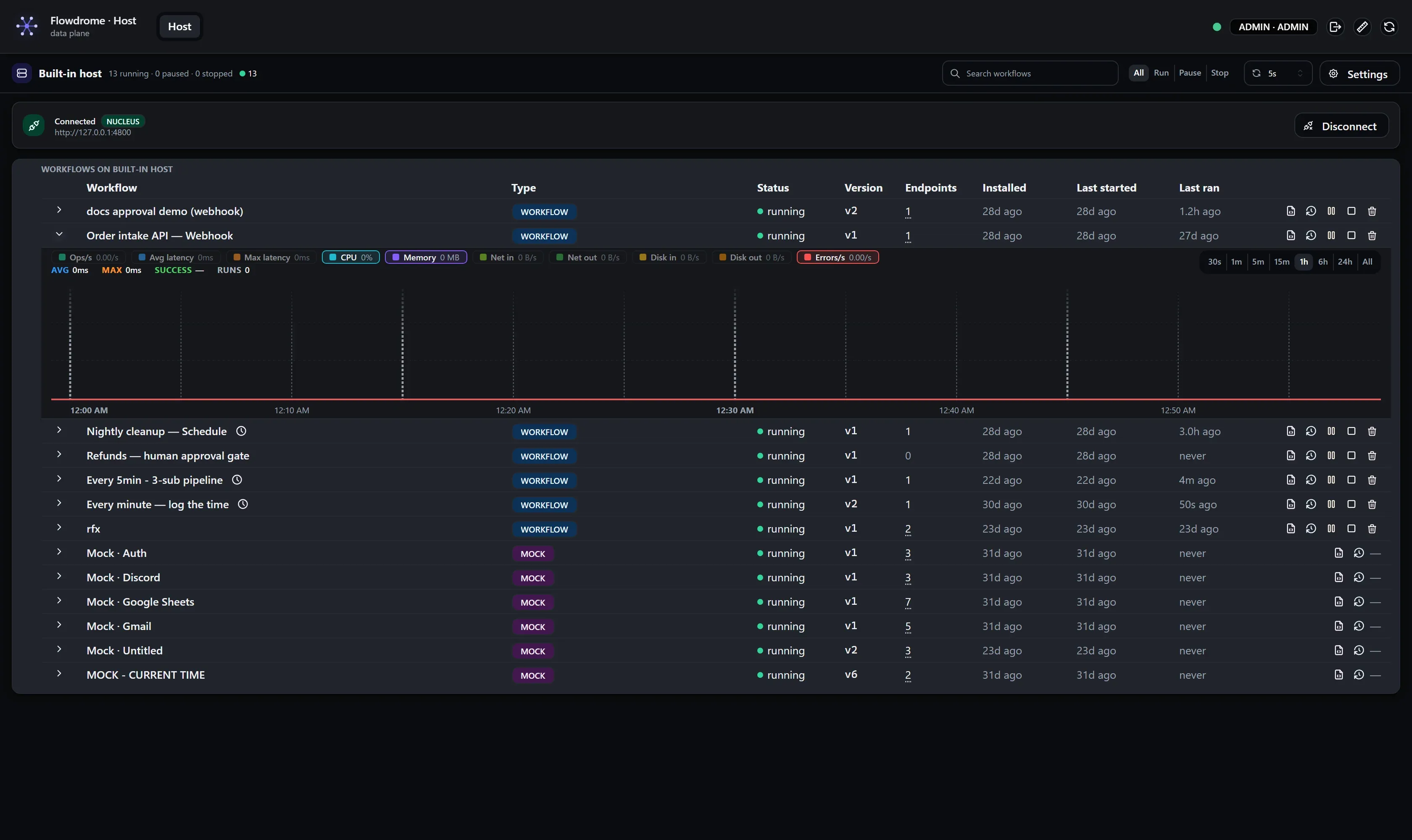
Each workflow row expands into its layered performance strip — ops/s, latency, CPU, memory, network, disk and errors on one chart with selectable ranges — with Per node, Recent runs and Logs beneath it. The same rows appear inside the fleet console when you expand this host there:
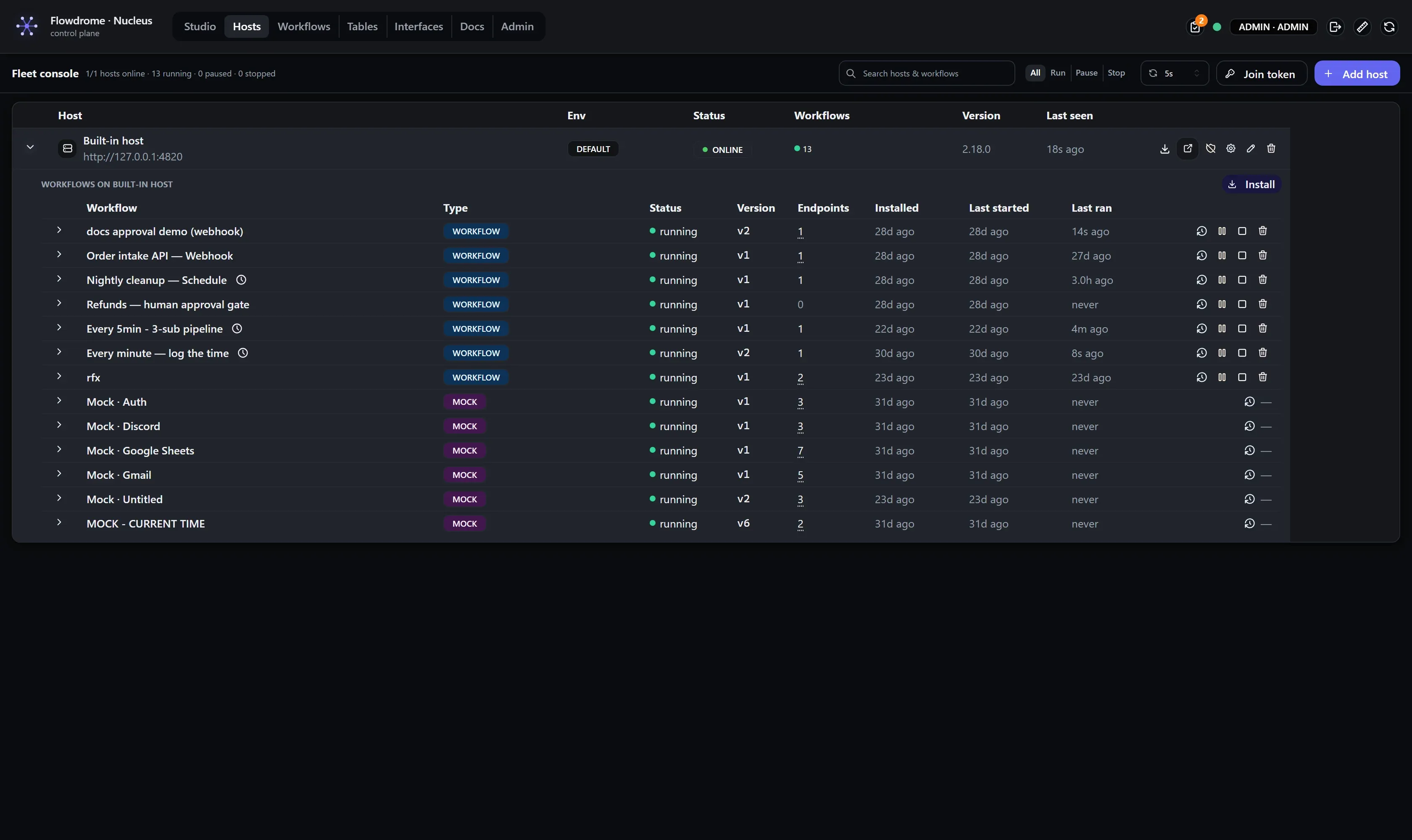
The history icon on any row opens the full Runs inspector (the Studio’s Runs view) in a floating panel — as many at once as you want, including the same workflow twice for run-vs-run comparison:
The URLs a workflow answers on
The Endpoints column on every workflow row is a count; click it and a panel stays open listing each route as its method and its full URL. Click a row to copy that one, Copy all to take the lot. Triggers with no URL — schedules, pollers, bots — are counted but listed as “n more triggers with no URL”, because there is nothing to copy. The same panel renders in the fleet console and on the host’s own dashboard.
The address in front of the path is the one your browser can reach, not the one the host
advertises to the Nucleus. That distinction matters for the built-in host: it advertises
http://127.0.0.1:4820 on purpose, because the Nucleus calls it from the same box and loopback is
the most reliable address for that — but 127.0.0.1 pasted into your browser means your laptop.
So a loopback advertisement is read as “the machine the Nucleus is on”, and the Nucleus substitutes
the address you are already browsing it on, keeping the host’s port. View the Nucleus
at http://10.1.1.5:4800 and its built-in host’s endpoints read http://10.1.1.5:4820/…. View it
over localhost and they stay on loopback, which is correct there. A host that advertises a real
address is left alone. The same correction applies everywhere the Nucleus hands you a host address —
the Open host link and the deployment rows in Workflows and Admin, not just this panel.
What a workflow actually does
The definition action on any row opens what this host is running, in the JSON viewer — visual tree or raw code, collapsible and copyable, in a floating panel like the Runs inspector.
That matters most on a packaged unit, where the box is the only
copy of the workflow and there is no Nucleus to go and look at. Values that came from credentials
read [redacted]; the URL beside the key stays readable, because the point is to see what the
workflow does.
Credentials in use
When a host’s workflows reference credentials, the dashboard lists them: the credential name, and every workflow that uses it. Names only — a value is never shown here or sent by the host.
It answers one question well: I am rotating this key, what breaks? Sealed units are covered too,
even though sealing leaves no ${'{'}credential.…{'}'} markers in their documents — the answer is
recorded when the unit is packaged.
What the dashboard shows without a credential
A host’s dashboard opens for anyone who can reach its port. Unauthenticated, it shows the host’s name and environment, every served workflow with its version, status and routes, and the performance strip — run counts, latency, success rate and the slowest steps by name.
The definition view, credentials in use, the per-node run detail behind the Runs inspector,
per-run error text, console logs, approving or rejecting a parked run, and every control (start, stop,
pause, remove, deploy, settings) need the host access token, or a signed-in Nucleus user on an
enrolled host.
The token is persisted as host-token.txt in the host’s data root: a packaged unit announces it on
every boot, a plain agent prints it the first time it mints one.
The endpoint-by-endpoint list — and what FLOWDROME_HOST_OPEN=1 changes — is
What a host exposes on its port.
Host settings
The Settings button (host dashboard) and the gear on each fleet row (Nucleus) open the same panel — the host’s engine and logging configuration:
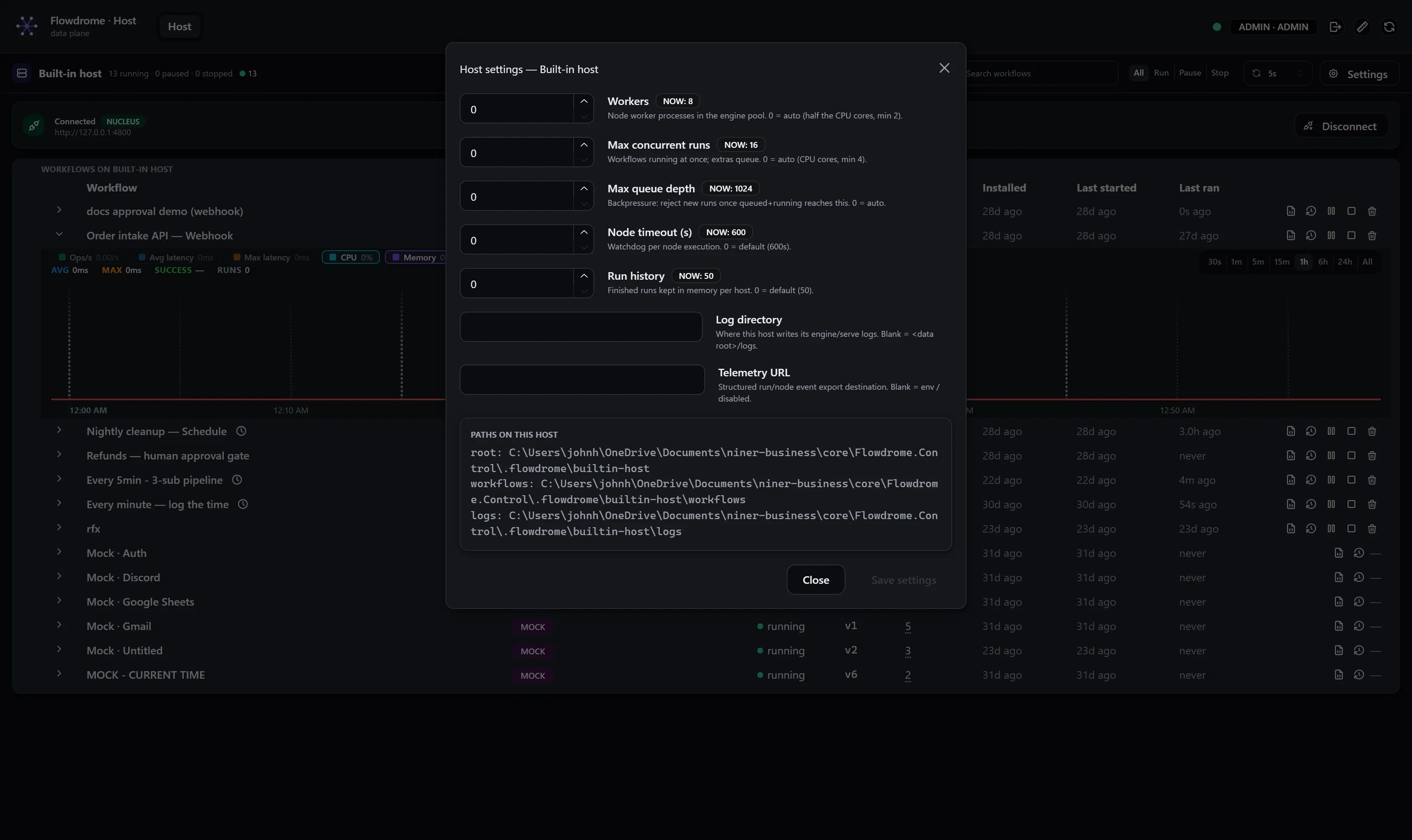
Settings persist in the host’s data root (settings.json); 0 means “auto” for the numeric
knobs. Worker-pool and concurrency changes apply the next time the host’s engine starts; the
log directory re-targets live.
The approvals inbox (Nucleus side)
The bell in the Nucleus header is the fleet-wide approvals inbox: every pending gate on every authorized host, polled live. Each card carries the gate’s title and description, the workflow, app and host, and how long it has waited. Approve or Reject (with an optional note) resumes the parked run immediately — the decider is recorded.
Deploying a workflow to a host
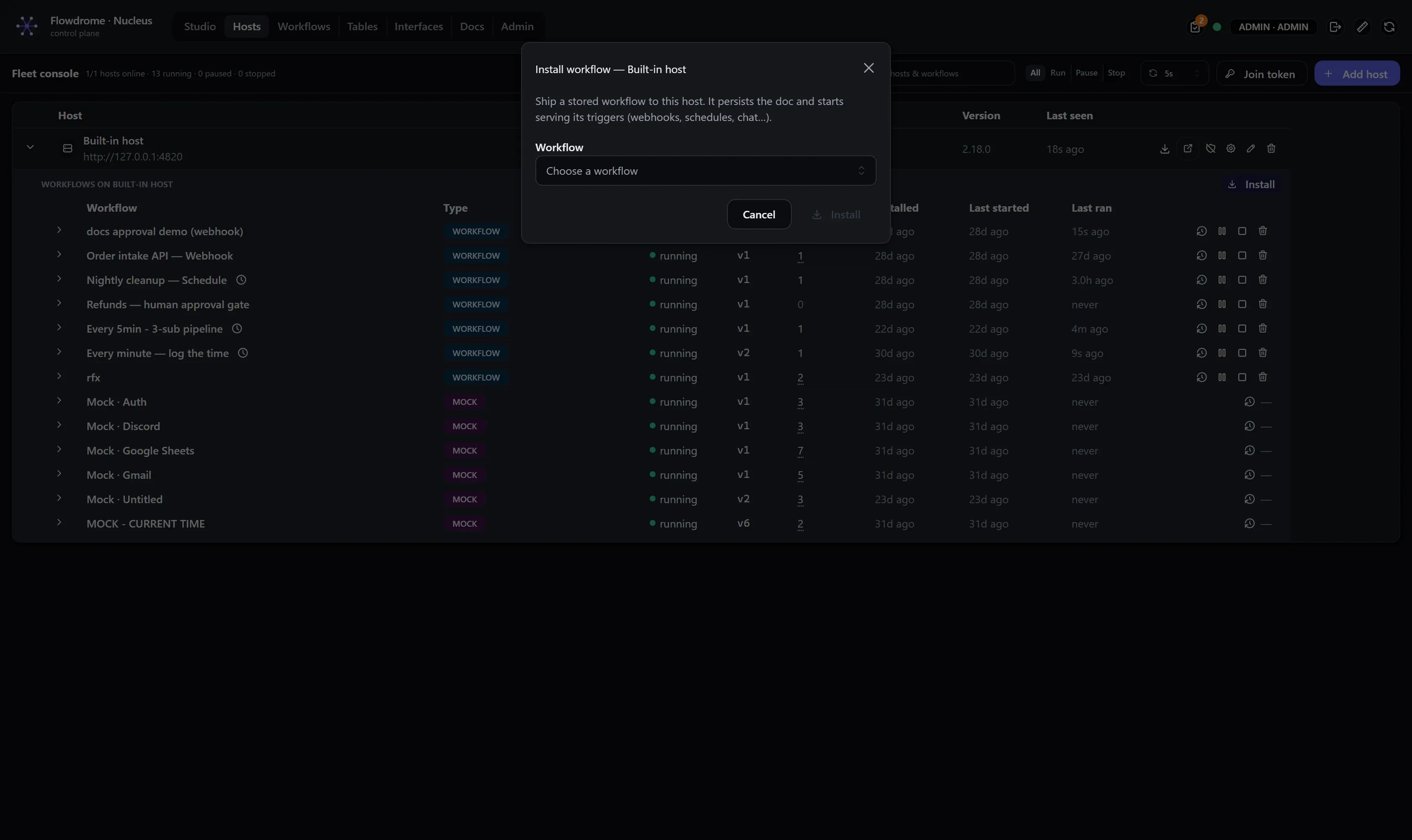
From the workflow, choose Deploy and pick the host — that’s the whole dialog. On a fresh install
the only host in the list is the Built-in host, and picking it is a complete deployment; you add
hosts to that list, you don’t need one to start. The Nucleus
pushes the same flowdrome.workflow.v1 document you tested, stamped with its saved version, and
mints a scoped resolve token (the host’s key to
lease that workflow’s secrets at run start). The host registers it
with its embedded engine — the same engine Studio tests with — and starts serving its real
triggers immediately. The dashboard’s serving strip shows each deployed workflow as
“Serving · name vN”, so what version a host runs is never a mystery. The full walkthrough —
including operating and rolling back afterwards — is the
Deploy to a host guide.
Deauthorizing a host
The fleet row’s deauthorize action revokes the host’s authorization: it stops being able to dial home, receive deployments, or lease secrets. Its row stays (so you can re-authorize a machine that’s coming back); Remove deletes the record entirely. The host’s local data disk is never touched by either — deauthorization is a control-plane decision.
The built-in host is not exempt from this: deauthorize it and the Nucleus stops deploying to the
only host a one-box install has. Re-authorize the row to put it back. To turn it off deliberately,
set FLOWDROME_BUILTIN_HOST=0 and restart the Nucleus.
Next
- Deploy to a host — the full deployment walkthrough.
- Install — the released artifacts, the built-in host’s settings, and adding hosts on other machines.
- Hosts & deployment — what a host exposes on its port, and how to upgrade one.