The Workflows screen
Studio is where you build one workflow; Workflows is where you run the estate. It lists every workflow in the Nucleus — with its owner, status, where it’s deployed, and when it last changed — organized in folders you control.
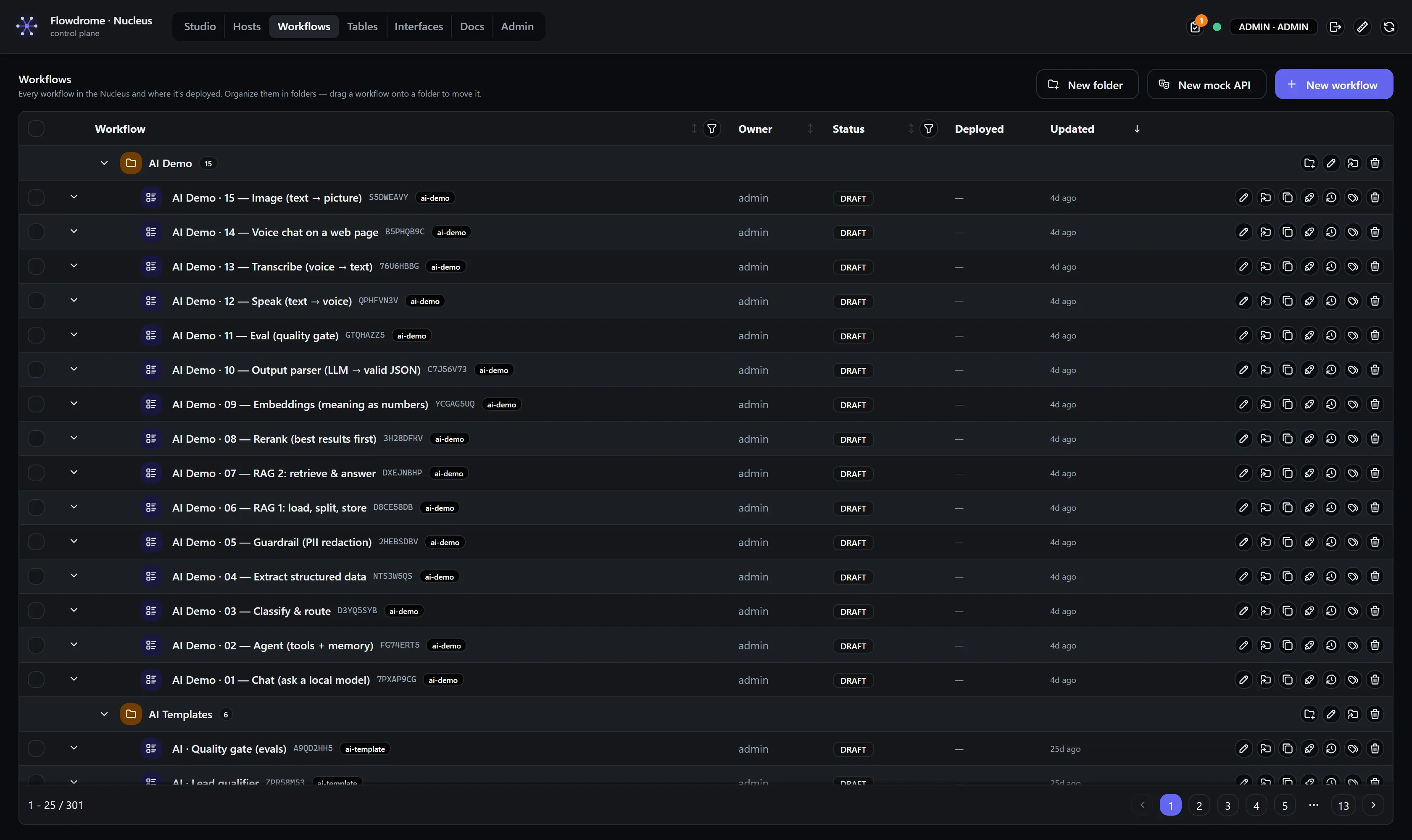
Clicking a workflow row opens it in Studio. Everything else you can do from here:
Folders
- New folder (top right) creates one; folders nest.
- Drag a workflow onto a folder to move it there — drag onto empty space to move it back to the top level. Folders accept folders, too.
- Prefer menus? Select rows and use Move selected to pick a destination from a tree.
Folders are organization only — they never affect execution or deployment.
Search, sort, filter, tags
Every column header sorts; the filter icons open per-column filters (name contains, status, deployed state, date ranges). Workflows can carry tags, and the table filters by them — tag a release train, a customer, a team, and slice the list accordingly.
Bulk operations
Checkboxes select workflows (folders aren’t selectable); the header grows Move selected, Package as unit and Delete selected buttons with a count.
Package as unit turns the selection into one finished, installable artifact — a docker load-able
image or a Proxmox CT template that runs with nothing else present. Everything the selection calls
comes along automatically. See Package as a unit. Deletion asks for confirmation, in a modal that
matches the rest of the product — and it tells you when a selected workflow is still deployed
somewhere, so you don’t orphan a running app by accident.
Duplicate, rename, history
The row actions (right side) cover the singles: open, rename, duplicate (a full copy with a new id), delete — and version history.
Versions follow one rule: only an explicit Save (Ctrl/Cmd+S) mints a version. Moving, adding or tweaking nodes creates no version noise — those edits live in your editing session, and the Save button carries a dot while any of them are unsaved. When you Save, the version number bumps and a snapshot is recorded (the last 50 per workflow are kept).
The history drawer gives each version real workflow-management teeth:
- Labels — name a version inline (“go-live”, “pre-migration”); you can also label at save time.
- Pins — a pinned version is exempt from the 50-version pruning. Pin the releases you may need to roll back to.
- Compare — pick any two versions (including the current draft) and get a node-aware
diff: which steps were added, removed, reconfigured (field-by-field, before/after — wired
◈carriers included), renamed or rewired, with layout-only moves counted instead of listed. No raw-JSON archaeology. - Restore — makes any old version current, itself recorded as a new version, so a restore never destroys anything.
- Rollback — the rocket action restores a version and redeploys it to every host currently serving the workflow, in one step.
The Deployed column
The column shows n/m running per workflow — how many deployments exist and how many are up.
The chevron on a row expands its deployment list, where each deployment carries a version
badge: teal vN when the host serves the current saved version, orange when the deployment
has drifted behind a newer save — redeploy (or roll back) to reconcile.
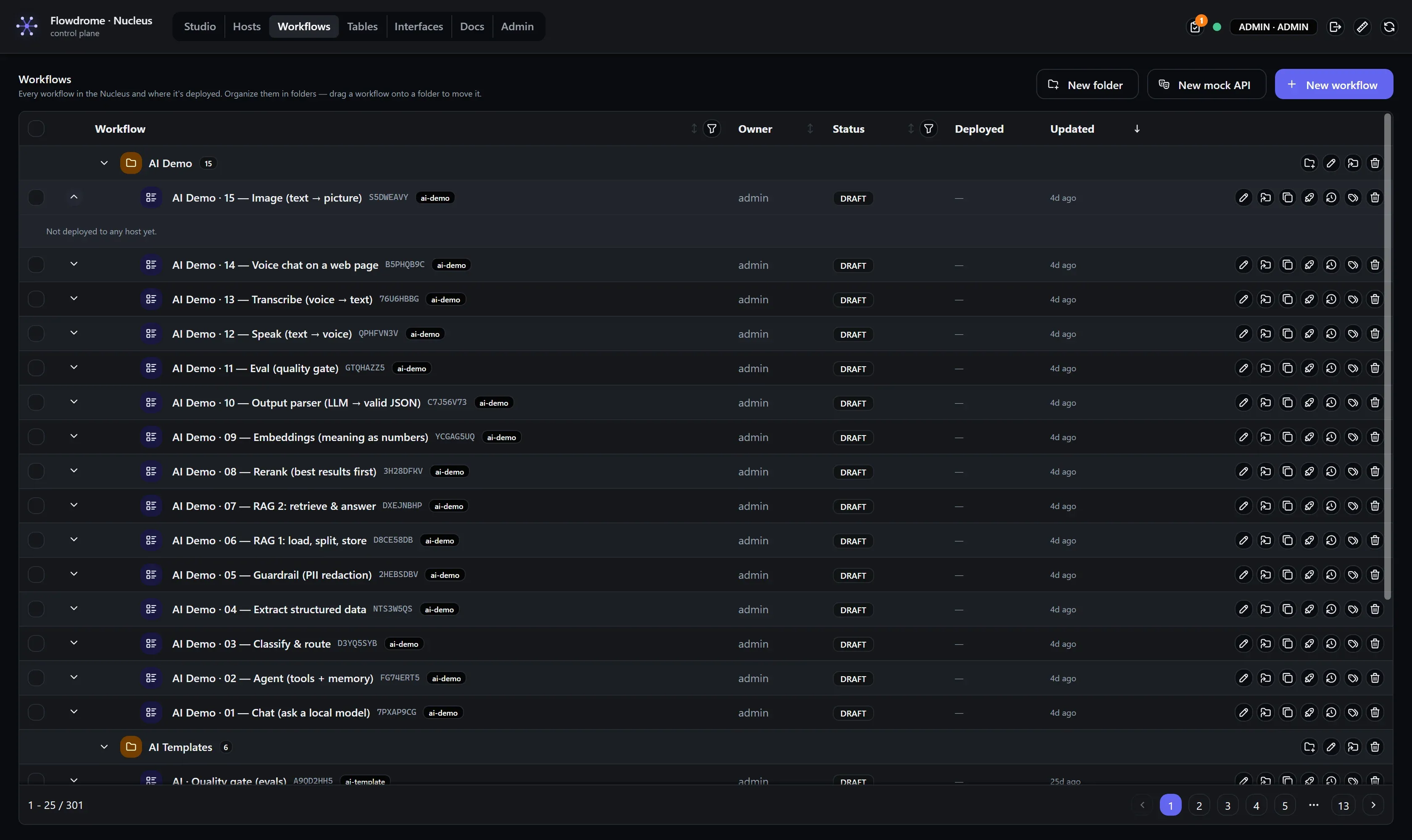
Deployments match the workflow by id, not name, so renaming a workflow never orphans its running apps. The logs drawer streams the deployed app’s output without ever leaving the Nucleus.
Next
- Hosts — the machines those deployments run on.
- Deploy to a host — the full deployment walkthrough.