Credentials
A credential is a named, template-shaped bundle of secrets — a bot token, an API key pair, an
OAuth2 client — stored encrypted in the Nucleus vault. Workflows never contain secret values;
they contain references like ${credential.telegram-bot.botToken} that are resolved at the
start of every run. That one design decision means exported workflows are safe to share,
deployed apps carry no baked-in secrets, and rotating a key is a one-place edit.
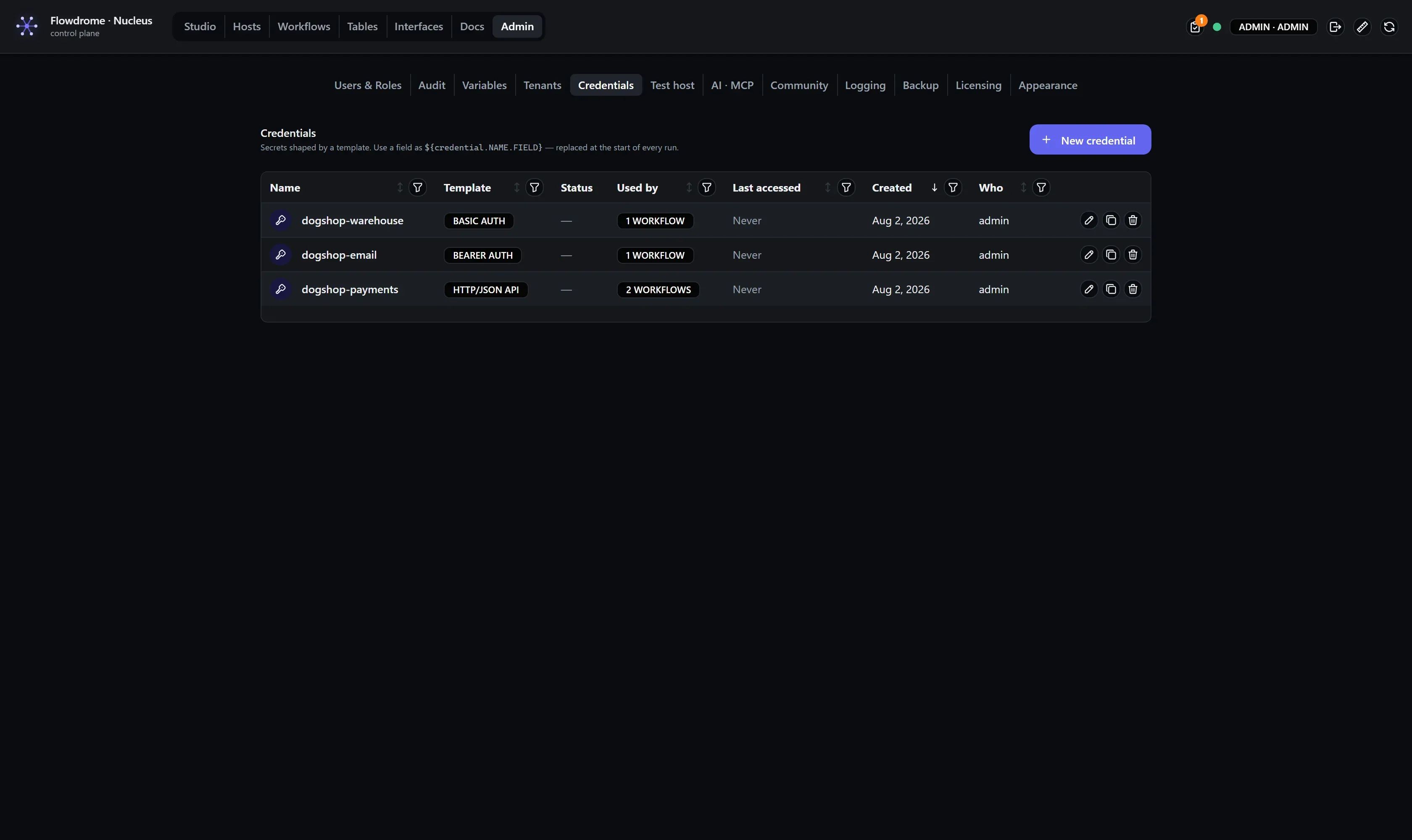
Admin → Credentials is the home screen:
Create one from a template
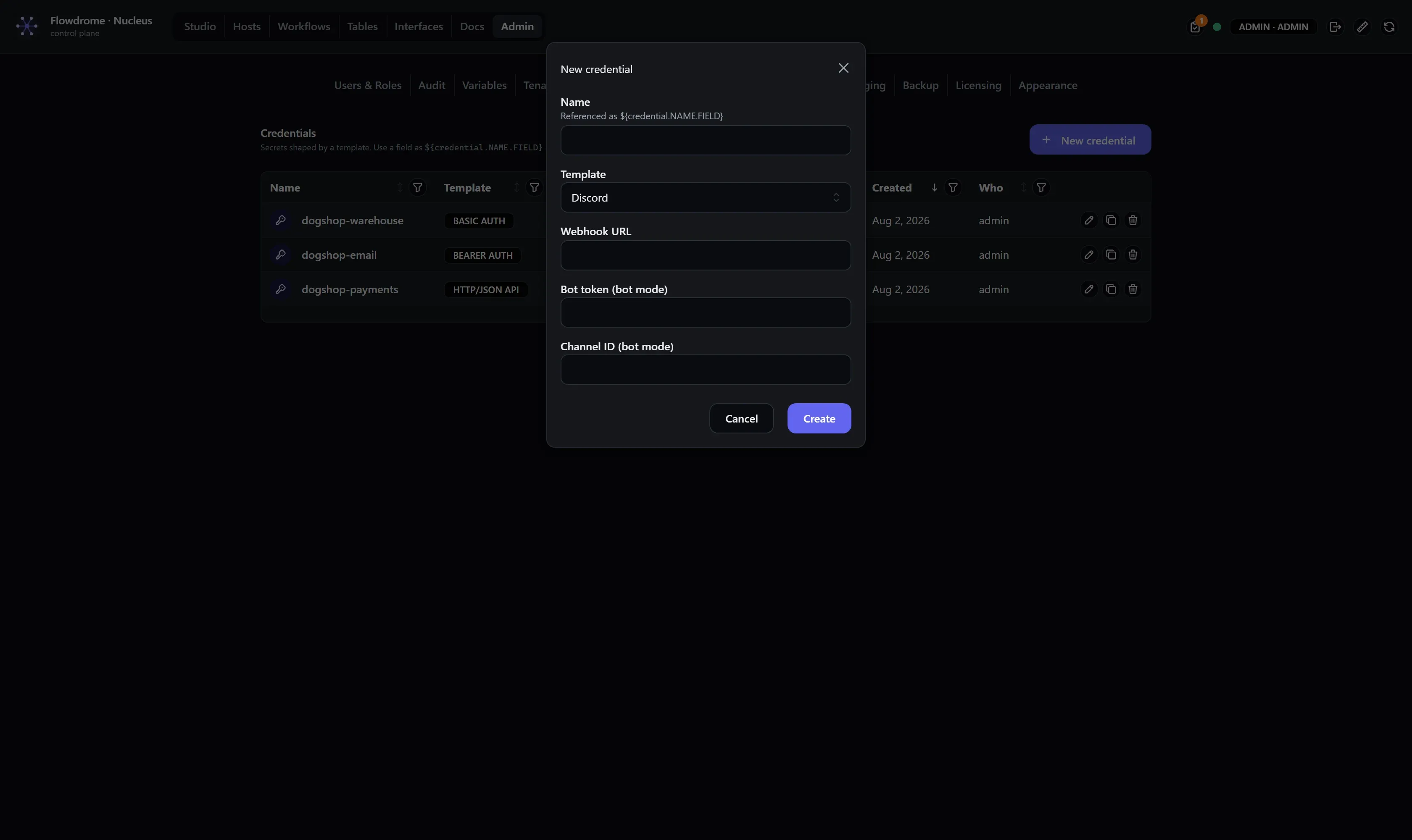
- Click New credential.
- Pick a template — Telegram bot, S3-compatible storage, HTTP/JSON API, SQL, SMTP, OAuth2 providers, and more. The template defines the fields (and which of them are secret).
- Name it. The name is how workflows reference it —
${credential.<name>.<field>}— so pick something stable liketelegram-botorprod-postgres. - Fill the fields and create.
Secrets stay masked
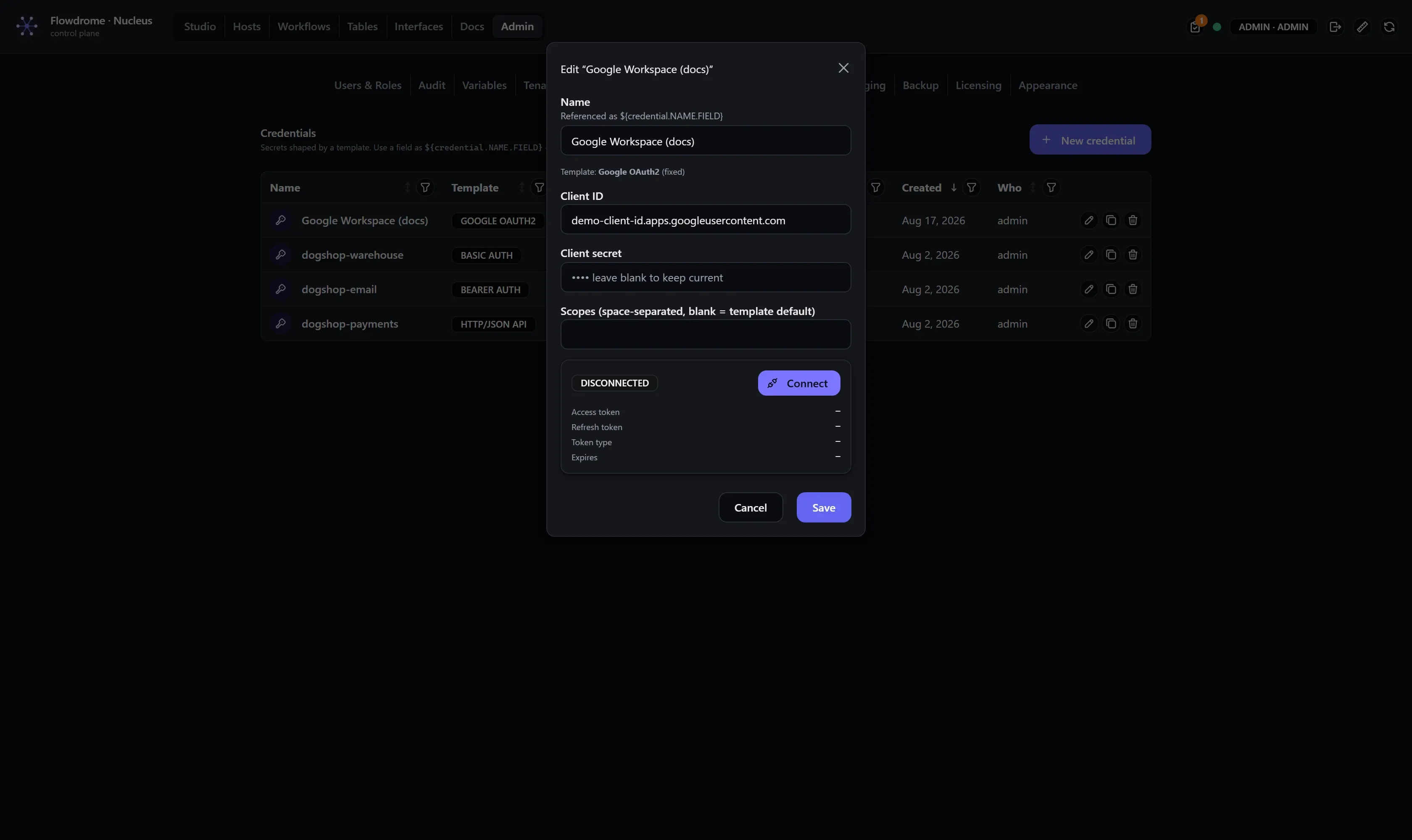
Open an existing credential and the secret fields come back redacted — the UI never ships stored secret values back to the browser. Leave a secret blank when editing and the stored value is kept; type into it to replace it.
The OAuth2 Connect flow, start to finish
OAuth2-kind credentials (Google, and the other preset providers) don’t store a long-lived secret you paste — they store a client id + client secret you create at the provider, and the tokens are issued by the provider through a consent flow:
- Create the OAuth client at the provider (for Google: an “OAuth client ID” of type Web
application) and register the redirect URI
https://<your-nucleus>/api/oauth/callback— the exact origin you browse the Nucleus at. - Create the credential from the OAuth2 template, pasting client id + secret.
- Open the credential and click Connect. The Nucleus builds a signed, single-use, PKCE-protected authorization URL and opens the provider’s consent screen in a new tab:
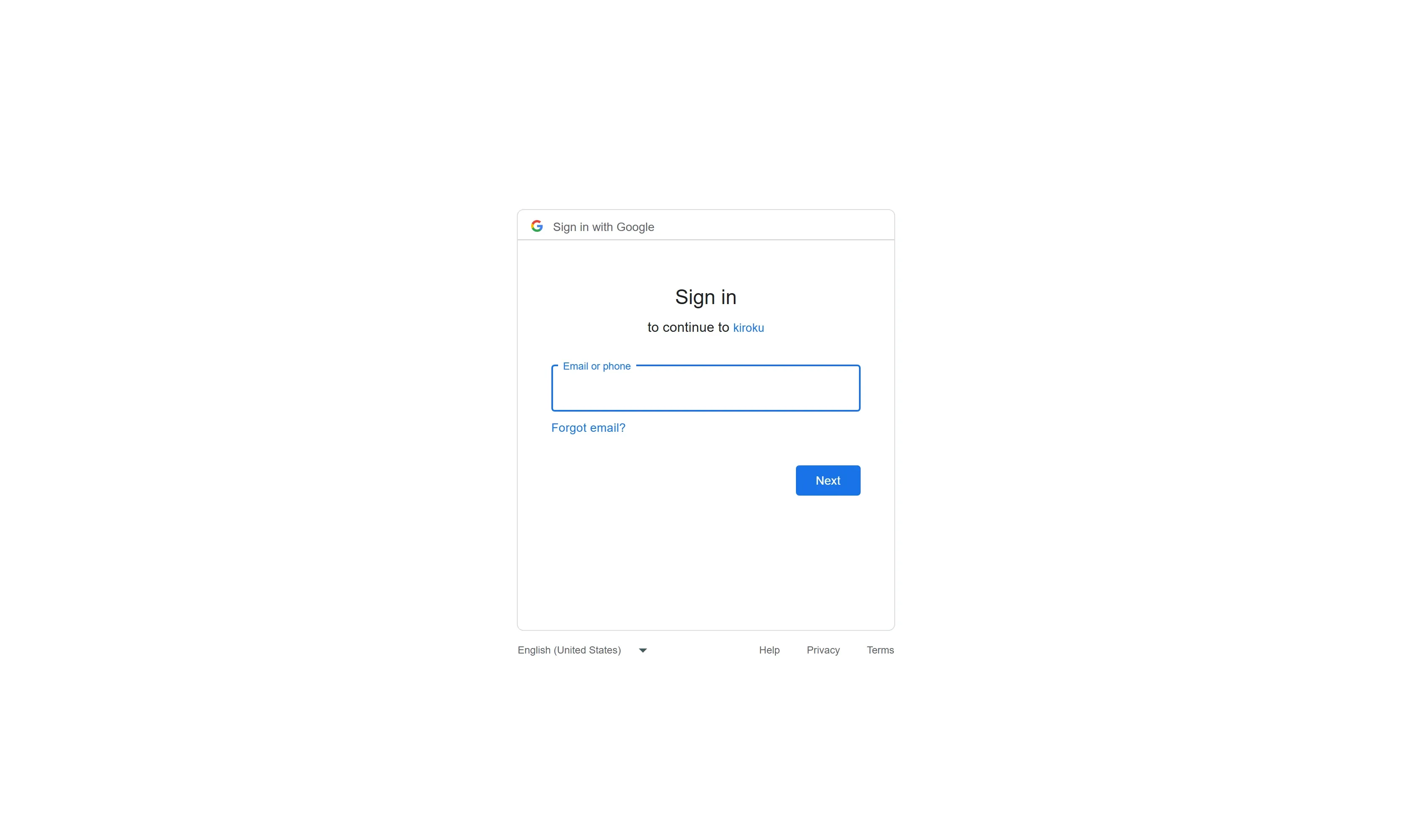
- Approve. The provider redirects back to the Nucleus callback, which validates the signed state, exchanges the code, stores the tokens in the managed fields, and marks the credential Connected — with the access-token expiry shown in the badge tooltip.
Refresh is automatic: whenever a run resolves a near-expiry OAuth2 credential, the Nucleus refreshes the access token first — in the editor’s test runs and in deployed apps.
Using credentials in a workflow
Connection-shaped nodes carry a credential picker among their settings, which you open on the node itself. Pick a credential and the node’s secret fields are provided by it — the field shows a quiet “provided by credential” hint instead of a value. The + New button creates a credential right there, without leaving the editor.
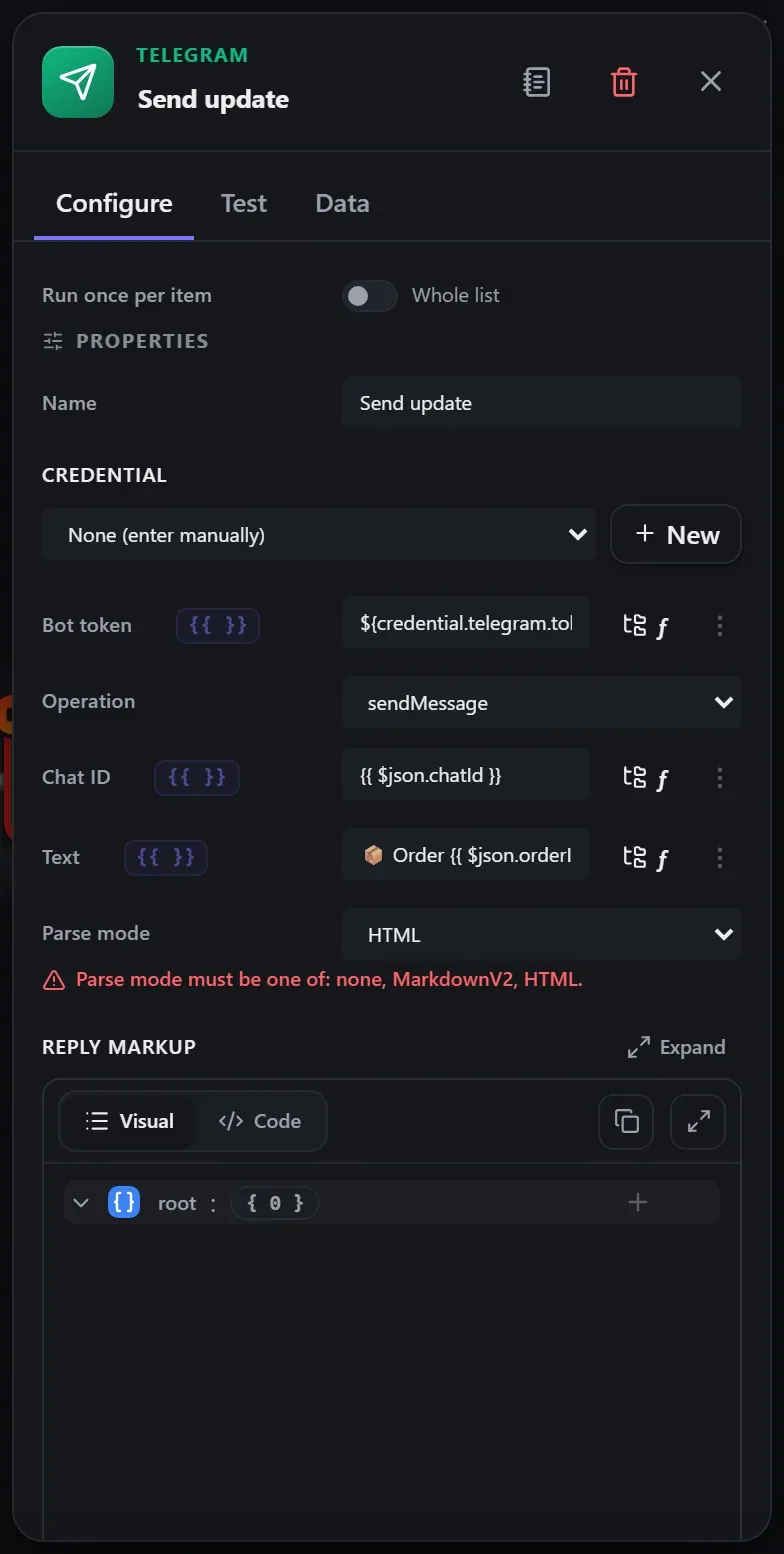
You can also type references by hand into any text field — ${credential.<name>.<field>} —
and reference credentials by id or name interchangeably.
Used-by tracking
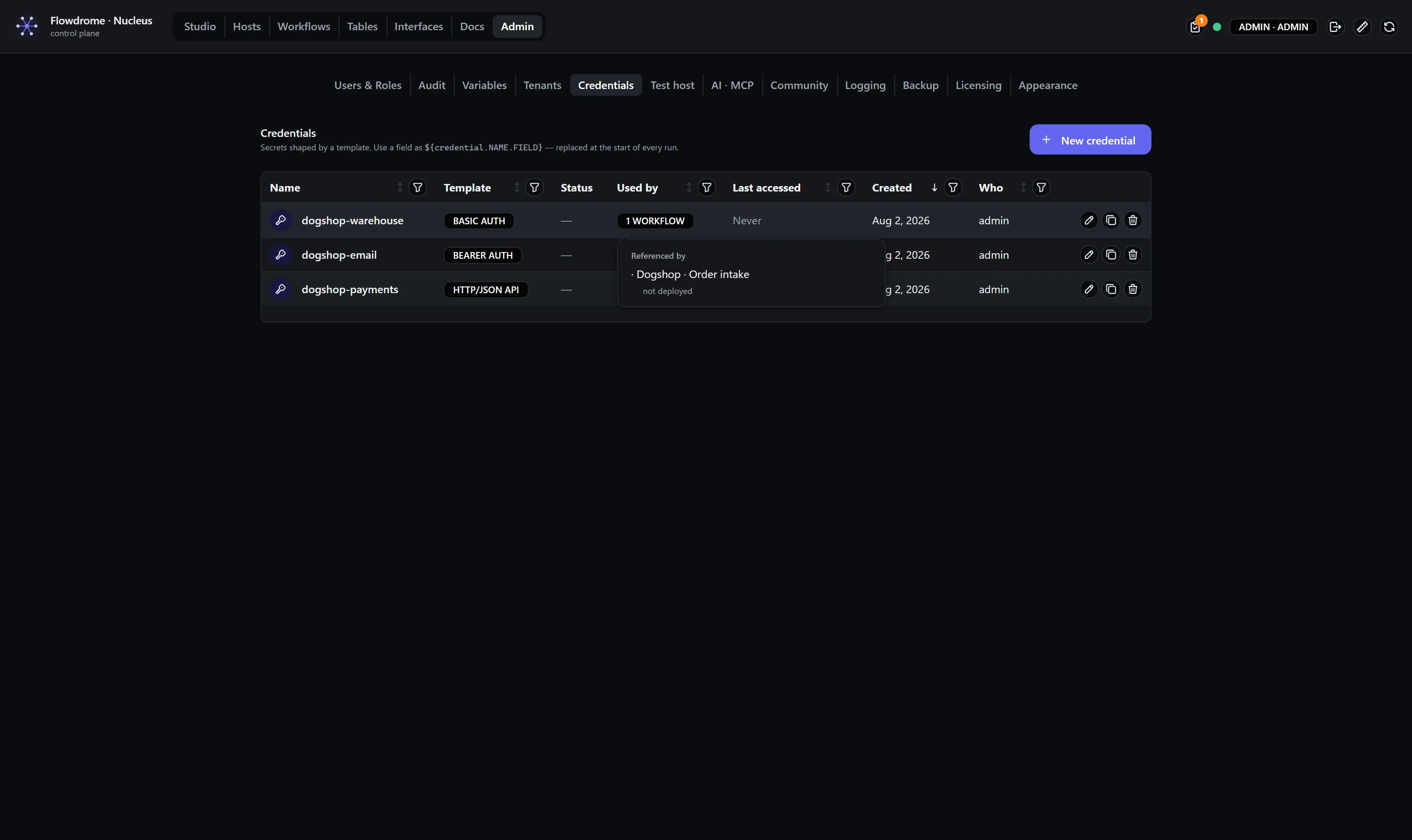
The Used by column counts the workflows referencing each credential — click it for the list, with a deployment marker when one of them is live on a host:
How deployed apps get secrets
Deployed apps dial home: at the start of every run the app asks the Nucleus to resolve its
${credential.*} / ${variable.*} references, receives a short-lived scoped lease (≈60s),
substitutes the values in memory, and runs. Secrets are never written into the artifact, the
container image, or the host’s disk. (This is why the Nucleus needs a routable
FLOWDROME_NUCLEUS_PUBLIC_URL when hosts live on other machines.)
Next
- Variables — the non-secret sibling.
- Google Sheets & Docs guide — a full OAuth2 setup in anger.