Stop and Error
error-handling.stop-and-error Error Handling v0.1.0 Unconditionally fails the flow with a configured error code and message — catchable by an enclosing Try, otherwise it fails the run.
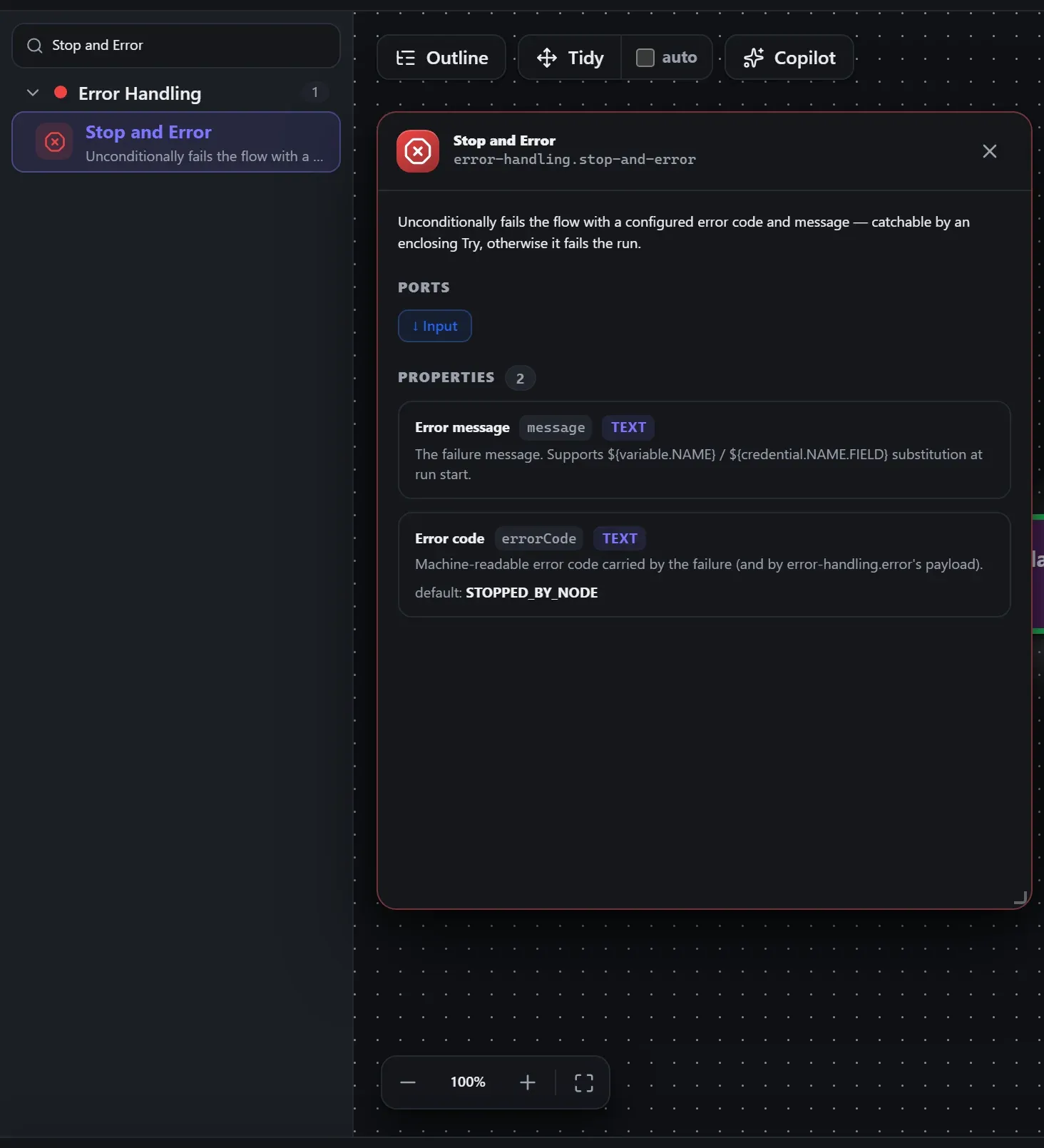
Finding it in the library
Search the builder's node library for Stop and Error (it lives under Error Handling). A single click opens the in-editor docs panel shown here — description, ports, and every property, without leaving the canvas. Double-click (or drag) to add it to the workflow.
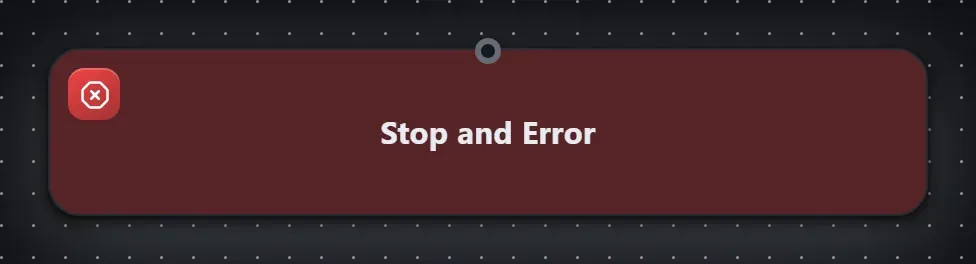
Wired up in the builder
Stop and Error in a real, runnable flow — captured live from the Studio editor, exactly as it looks on your canvas. This is the same workflow used for the example input & output below.

How it’s configured
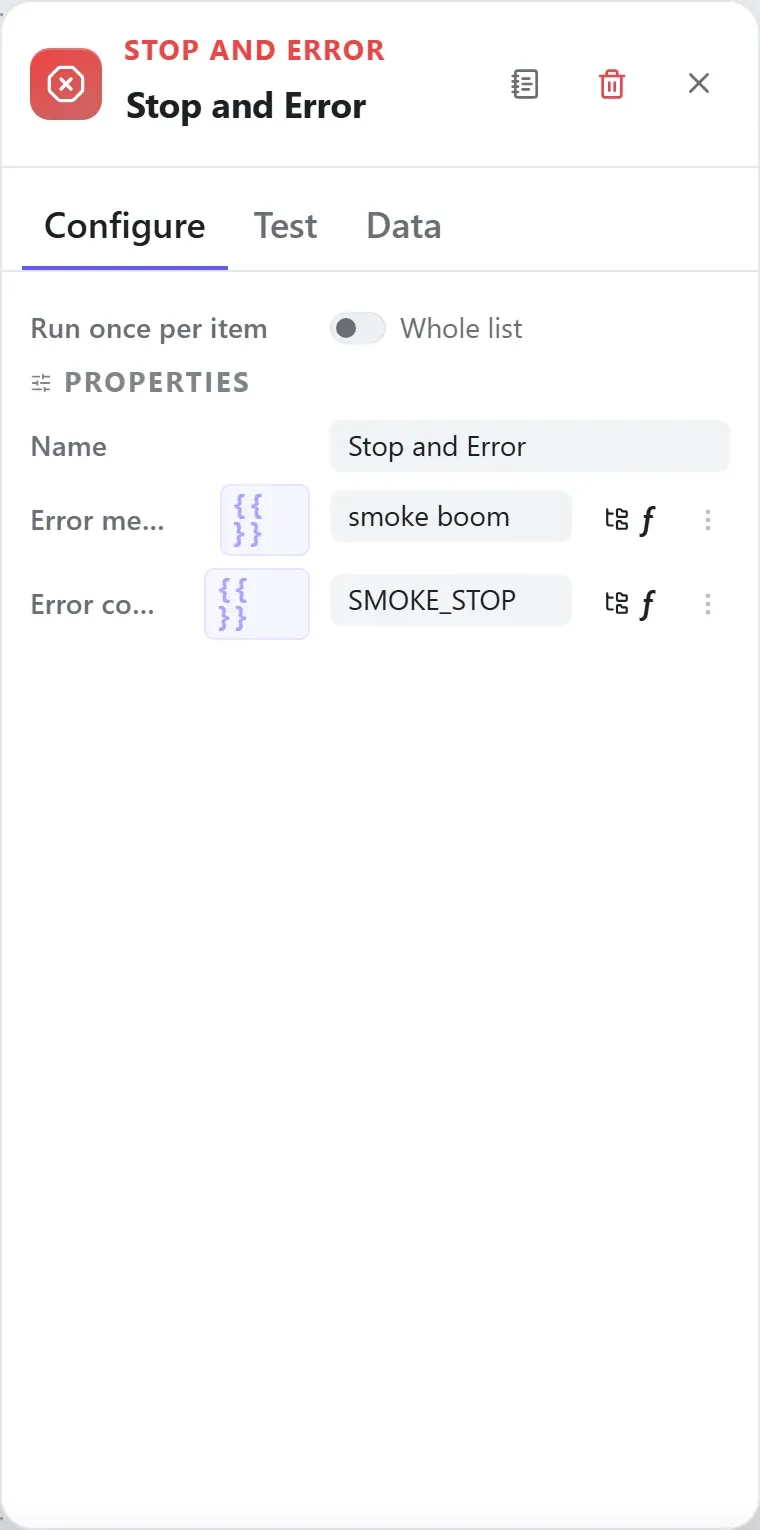
The node’s settings as the builder shows them — every field laid out with real values. In the Studio these are edited on the node: click the chevron on the divider under its ports to open them.
Ports
Ports are the node’s contract with its neighbours. In the editor a port label renders bold when wired and italic when optional; ◈ ports accept attachment carriers rather than data wires.
| Direction | Port | Label | What flows through it |
|---|---|---|---|
| Input | input | Input |
How data flows through it
Stop and Error consumes the content of the incoming envelope — when it is fed directly by a trigger, the trigger’s wrapper is unwrapped at the node boundary so the node sees the actual data, not the metadata shell. Its output becomes the payload for the next node, while the envelope (trace ids, correlation, binary refs) rides along untouched. In the Runs view you always see the whole envelope for both sides of this node.
Expressions in the config
String-typed properties accept {{ }} expressions evaluated against the
incoming item at run time — e.g. {{ $json.customer.email }}. On this node
that’s message, errorCode. JSON- and code-typed fields never interpolate — they are passed through literally.
Build it with AI
Every node in this reference is reachable through Flowdrome’s
AI Copilot and the
MCP tools — say what you want, and the graph surgery
happens server-side. Node types resolve fuzzily, so the catalog label
(Stop and Error) works as well as the exact type id (error-handling.stop-and-error).
In the Copilot panel (or any connected AI):
add a stop and error node after the triggerAs a step in a create_chain_workflow call:
{"type":"Stop and Error","config":{}}Raw MCP call — add this node to a workflow with add_node
curl -s -X POST http://localhost:4800/mcp -H "content-type: application/json" -d '{ "jsonrpc": "2.0", "id": "1", "method": "tools/call", "params": { "name": "add_node", "arguments": { "workflowId": "<id>", "type": "Stop and Error" } } }'Example input & output
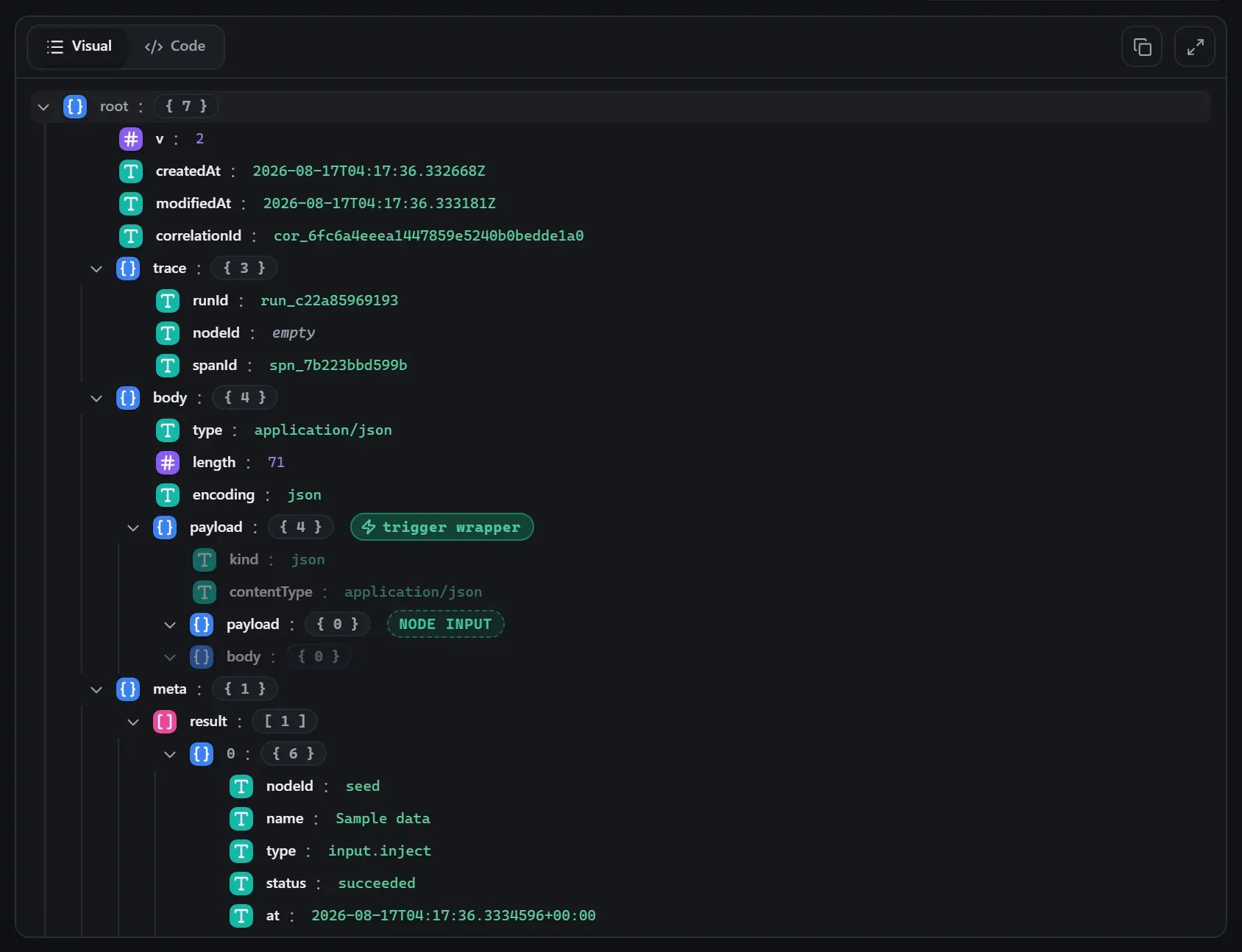
Captured from a real test run of the workflow above — this is what the Runs view shows after pressing Test workflow. This particular run fails by design (see the note below).
This run fails BY DESIGN — Stop and Error exists to raise a designed failure, so the example shows the raised error instead of an output.
Input — what the node received
body.Output — what the node produced
This step raised: smoke boom
Property reference
Every setting, with its type and default — the same fields shown configured above.
| Property | Type | Default | Description |
|---|---|---|---|
Error messagemessage | string | "" | The failure message. Supports ${variable.NAME} / ${credential.NAME.FIELD} substitution at run start. |
Error codeerrorCode | string | "STOPPED_BY_NODE" | Machine-readable error code carried by the failure (and by error-handling.error's payload). |
Related nodes
The rest of the Error Handling group — the same folder you’d scan in the editor’s library.
This page is generated from the node registry by gen-node-docs.mjs on every
site build — ports, properties, defaults and visibility rules cannot drift from the code.
The screenshots and example data are captured from a live Flowdrome by
npm run shots:nodes and npm run gen:examples.